
Frame Simulator 9
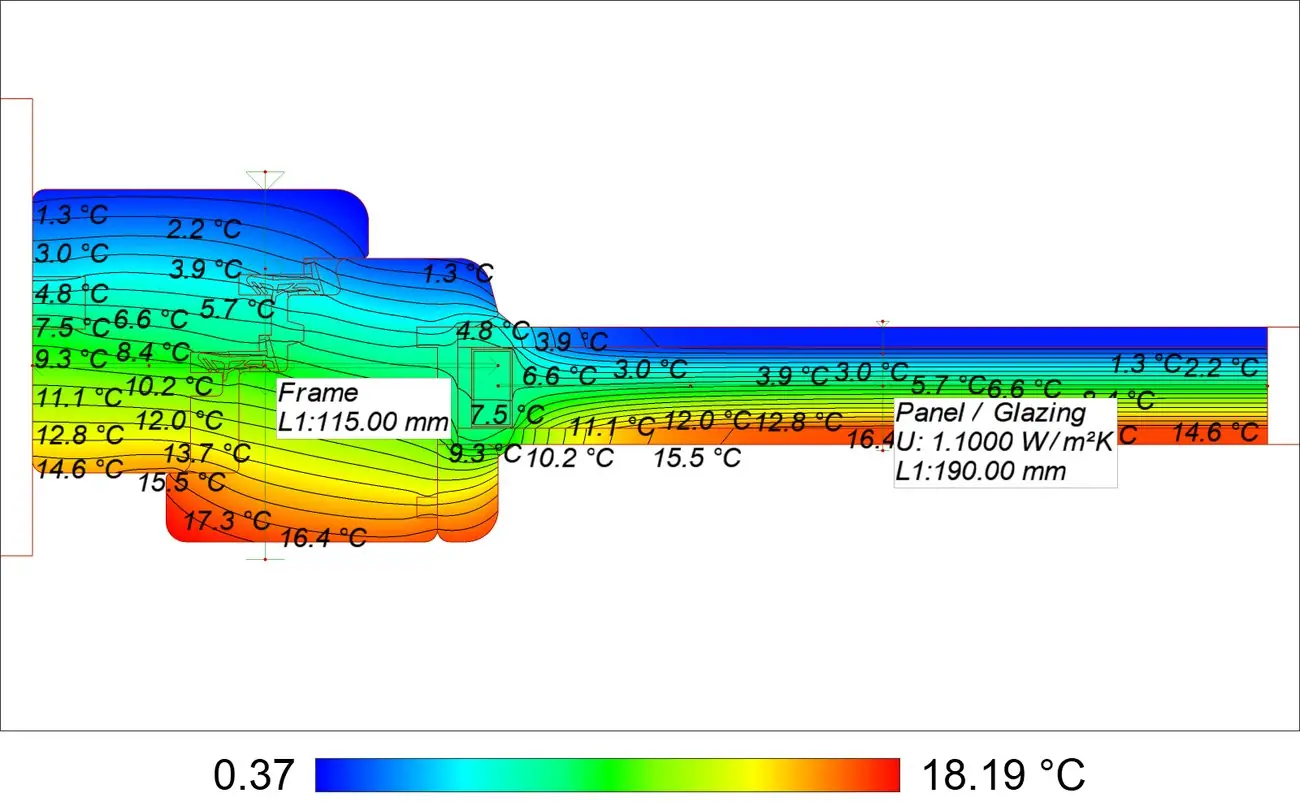
What is new in version 9 for Frame Simulator, grouped by topic, with an explanation of what changes in window calculations and screenshots of version 9 in English. All examples use the same junction of a wooden window: frame, sash and glazing unit.
Not included here are the features of Mold Simulator only: Bridge Generator, 3D and Dynamic versions, Glaser, condensation and mould legends. Frame Simulator 9 includes Frame Composer 5.
Artificial intelligence and automation
From the profile drawing to the simulation with far fewer manual steps: materials, boundary conditions and the project template are set automatically, and an AI assistant can drive the program.
New automatic material fill of the section regions, with review of uncertain cases
Filling materials is the longest step in a window calculation: dozens of regions across frame, gaskets, sealants, spacer and glazing unit. The Auto fill button in the Areas tab classifies every region and proposes the most likely material, using a model trained on real window sections.
Before starting you set the frame system (wood, PVC, aluminium, wood-aluminium or auto), whether the drawing contains adiabatic areas, the handling of the EN ISO 10077-2 insulation panel and the confidence threshold below which the program asks for confirmation (80% by default). The system matters: the same chamber shape is PVC in one profile and aluminium in another, and a PVC frame has metal reinforcements and EPDM gaskets, while an aluminium frame has a thermal break in composite material.
The result opens in a review table: first the uncertain regions, then those filled automatically, finally those left empty as cavities. For each region you see its size, the confidence and the proposed material; the magnifier zooms the view to the region, quick search finds another material, and the choice can be applied to all areas with the same name or colour. If you run the fill again on a project that is already filled, the existing materials are re-evaluated but kept as the proposed choice.
At the glazing edge the program recognises spacer, butyl, desiccant and secondary sealant; the gas gap can be described as a glazing cavity with the Ug value of the glazing. The proposed spacer is aluminium, the representative spacer of EN ISO 10077-2 Annex F: for a warm-edge spacer, assign its specific material.
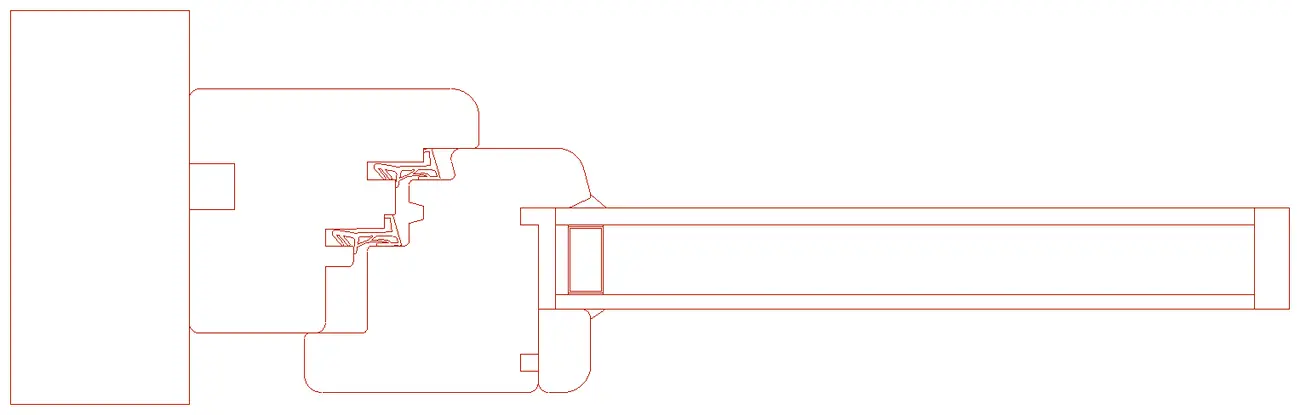
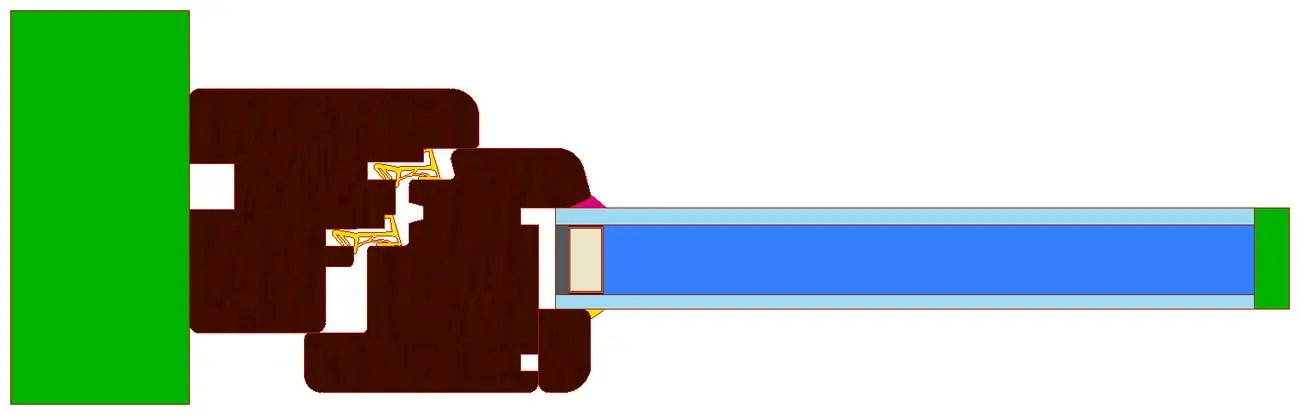
Good to know. Auto fill is a starting point and the result must always be checked: thin gaps between frame parts to be left empty, rigid profiles mistaken for gaskets, materials at the glazing edge. The material labels (Materials section) let you do this in seconds.
Boundary conditions can now be assigned automatically with one click
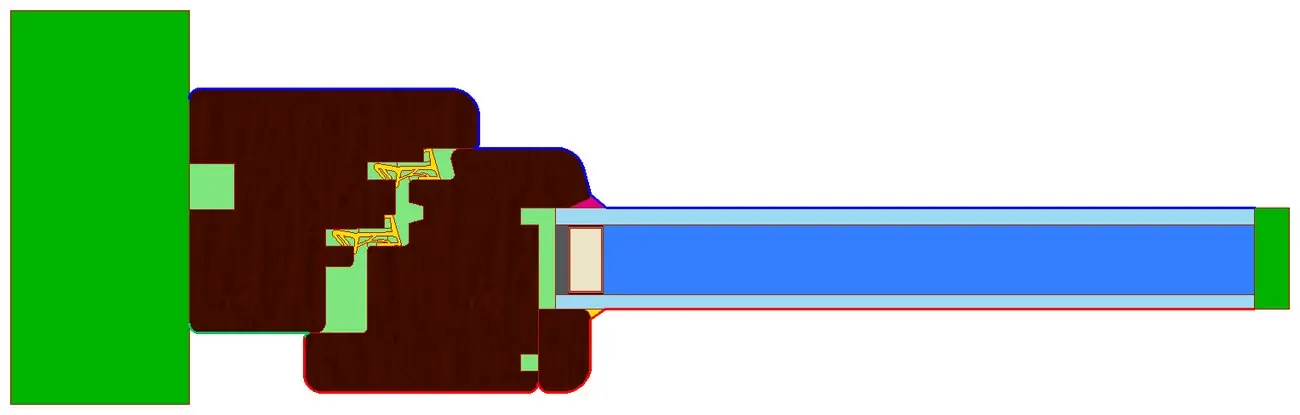
The auto-assign button in the Boundary tab assigns the external boundary condition to the faces on the cold side and the internal one to the faces on the warm side, reading the heat flow direction and the temperatures set by the project template. On the internal faces of frame and glass it applies the internal window boundary.
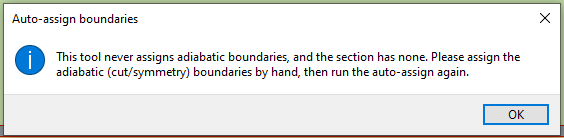
Adiabatic cut boundaries are never assigned automatically. In a window junction the cuts are usually already drawn as adiabatic areas, as in the example, and the assignment takes a single click. If the section has neither adiabatic areas nor adiabatic boundaries, the program says so and asks you to assign them by hand first.
AI assistants can now drive the software through the built-in MCP server
Frame Simulator 9 includes an MCP (Model Context Protocol) server, called Heatsim, which exposes the program’s commands to an AI assistant. With Claude Desktop, Claude Code, ChatGPT, Cursor, VS Code or Codex connected, the assistant reads the open project and can work in the software: import the profile DXF, fill the materials, assign the boundary conditions, simulate, read Uf and Ψg and lay out a report.
You can ask what you would ask technical support: check the settings of a calculation and explain what to correct, check the widths bf and bp, compare two gasket variants. The answers are based on the actual project and results, not on generic values.
The server is started with the Heatsim button at the bottom right of the view bar, which stays highlighted while it is running. The Connect an AI assistant window configures the client. To keep it always on, start the program with the -mcp option. The scripting plugin is not required.
Requirements. The MCP connection works with an active Updates & Upgrade subscription. The AI assistant (Claude, ChatGPT or other) is the user’s own service.
Automatic template suggestion when importing a 2D DXF drawing
Up to version 8, importing a DXF correctly required choosing the right project template first (horizontal or vertical junction, roller shutter box, curtain wall, radiosity or single equivalent conductivity method), since it sets boundary conditions, heat flow direction and calculation standards. Now the program analyses the imported drawing and suggests the matching project template; the user confirms it or picks another one.
Materials
Check and change the materials of a complex section in less time.
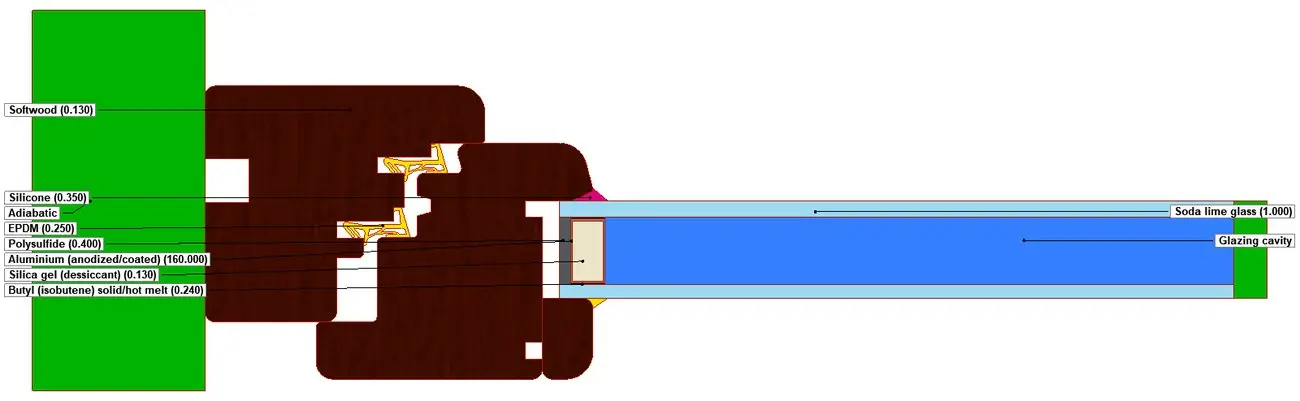
Labels with the material name and leader lines for all filled areas
A button in the view bar shows a label for every filled area, with the material name and conductivity, connected to the area by a leader line. The labels are stacked along the edges of the view, so they stay readable even for gaskets and sealants a few millimetres thick. You can show one label per area or one per material, and leave out the cavities.
They work in the areas, boundary and simulation views. Use them to check at a glance what auto fill has assigned and to prepare clear pictures for your client.
Quick material search while typing the name in the materials panel
In the material library, type part of the name, for example “EPDM” or “polyamide”, and the list is filtered as you type, without browsing folders and subfolders. The same search is available in the auto fill review table.
Calculation and results
Faster simulations, mesh control and the details of every cavity calculation.
Much faster simulations
In the heaviest cases for a window, such as cavities calculated with the radiosity method or with ISO 15099, the program adds the necessary calculation passes by itself instead of refining the mesh further, giving shorter times for the same accuracy. In the example, frame and glazing unit with 28 cavities and the radiosity method, the full simulation with Uf and Ψg takes about 10 seconds.
Detailed analysis table for each air cavity in the advanced results
For each detected cavity, the advanced results list the values used to calculate its equivalent conductivity to EN ISO 10077-2: dimensions b and d, emissivities of the faces, minimum, maximum and mean temperature, radiative coefficient hr0, equivalent conductivity λ and heat flow direction. The table is also available as a report tag.
It answers a request from users who have to document the cavity calculation to a certification body: the automatic result can now be checked by hand, cavity by cavity.
| ID | b [mm] | d [mm] | ε1 | ε2 | Tmean [°C] | hr0 [W/(m²K)] | λ [W/(mK)] | Flow |
|---|---|---|---|---|---|---|---|---|
| 23 | 6.47 | 13.79 | 0.900 | 0.900 | 6.88 | 4.972 | 0.0250 | horizontal |
| 25 | 6.15 | 7.18 | 0.900 | 0.900 | 3.37 | 4.788 | 0.0250 | horizontal |
| 26 | 8.50 | 1.36 | 0.900 | 0.900 | 3.86 | 4.813 | 0.0250 | horizontal |
| 28 | 3.86 | 3.86 | 0.900 | 0.900 | 4.87 | 4.866 | 0.0250 | horizontal |
| 30 | 3.83 | 1.10 | 0.900 | 0.900 | 8.85 | 5.078 | 0.0250 | horizontal |
Five rows of the table for the example junction, EN ISO 10077-2 (2025) radiosity method. The program also reports the minimum and maximum face temperatures and the on-screen flow direction.
More accurate ISO 10211 C.2 flow error in simulations
Among the results the program reports the convergence error required by EN ISO 10211, Annex C.2 item d): the sum of the absolute values of the heat flows entering the model, calculated with n and with 2n nodes, shall not differ by more than 1%.
In version 9 this value is calculated more accurately. If it stays above 1%, which is common with radiosity or ISO 15099 cavities, the program automatically runs additional simulation steps.
Maximum mesh segment length setting for 2D simulations
The advanced simulation settings have a new Max segment length parameter: the mesh generator does not create edges longer than this value. It is useful in very large models, such as a curtain wall or a junction including the masonry, where it gives an adequate mesh without greatly increasing the number of subdivision steps. The default value (1 km) effectively disables it.
Reports
More custom data, direct PDF output and reports that never lose their pictures.
Add an unlimited number of custom project tags for reports
Free project tags used to be limited in number. Now you can create as many as you need (client, profile code, system, finish, job number, revision…) and use them in report labels, which update by themselves when the value changes. With a template report you can produce the reports for a whole series of profiles by changing only the data.
Report views can now be exported directly to PDF from the print window
From the report print window, views are saved directly to a PDF file, without going through a virtual PDF printer installed in Windows.
Label background images are now embedded in the project and travel with the file
A label with a background image, such as a logo or letterhead, keeps a copy of the image inside it. When the project is opened, the program first looks for the file at its original path; if it cannot find it, it uses the embedded copy. A project opened on another computer, or sent to a colleague, therefore shows the complete report.
Graphics, languages and privacy
Interface changes.
New rendering engine for all views and reports
All views, on screen and in reports, use a new graphics engine. Pictures are sharper, and the program also works with less powerful integrated graphics cards and with some NVidia cards that had display problems with the previous engine.
Full support for English, Italian, Spanish, French and German
Interface, libraries of materials, boundary conditions, scenarios and reports, the manual and the scripting documentation are available in five languages. The language is changed in View › Program settings › Localization and applies from the next start. It is best set before starting a calculation, since project files and screenshots come out in the chosen language: useful when working with clients or manufacturers in other countries.

New Privacy tab for anonymous statistics and auto fill training data
In the program settings, the Privacy tab groups two choices:
- Send anonymous usage statistics: anonymous usage data, used for updates and support;
- Help improve automatic material fill: Ask me, Yes or No. With consent, after a review only the size and shape measurements of each region, the proposed material and the chosen material are sent. Coordinates, outlines, file names and any other project data never leave the computer: the profile drawing stays confidential.
Each installation has an anonymous ID. The choices can be changed at any time.

Startup no longer hangs when the usage statistics server is slow or unreachable
On company networks with firewalls or proxies, or with a missing or slow connection, sending the statistics at startup could slow down or block the program from opening. Now the program starts anyway, without waiting for the server to answer.
Fixes
Bug fixes and various improvements
Many fixes from the months of beta testing, including the flow direction in ISO 15099 cavities, clearer warnings for cavities outside the scope of the standard and for the handling of boundary couples.
